
Overview
A list view is a saved filter for the list on the left side of an app. Instead of scrolling or searching every time, you describe the records you want once, for example Active products whose name contains "Laptop", and then apply that view whenever you need it.
List views work the same way in every app that has a filter button next to the search box:
| App | What a list view filters |
|---|---|
| PCM Hub | The records of the object chosen in the List Source. Each object has its own saved views. |
| CD Hub | Context definitions. |
| Deal Packages | Deal packages. |
License Manager does not have list views.
A list view narrows the list the same way the search box does, and the two combine. The result count under the toolbar always shows how many records match everything you have applied.
Opening the List Views panel
Click the filter button next to the Refresh button, beside the search box. The List Views panel opens under it.
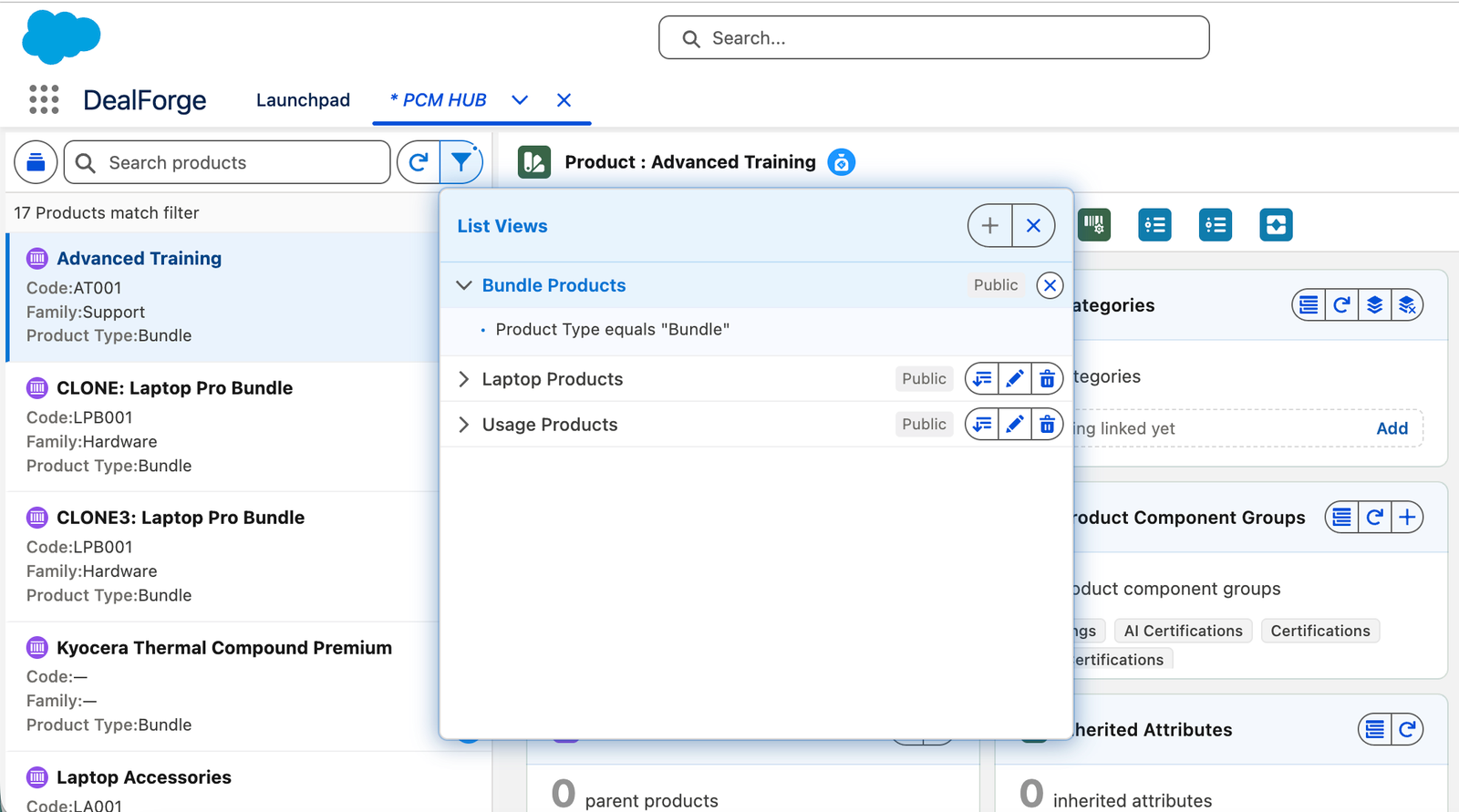
images/list-views/list.pngThe List Views panel, showing saved views and their visibilityThe button tells you the state of the list:
| Button | Meaning |
|---|---|
| No list view applied. The list shows every record, subject to your search. | |
| A saved list view is applied. The button turns light blue with a blue outline and a blue dot. | |
| A quick view is applied. The button turns amber with an amber dot, because the filter is not saved. |
Hover over the button to see which of these it is.
Each saved view appears as a row with its name and whether it is Public or Private. Click the row to expand it and read its criteria. The row buttons are:
| Icon | Action | What it does |
|---|---|---|
| Apply | Filters the list with this view and closes the panel. | |
| Edit | Opens the view in the builder so you can change its name, criteria or visibility. | |
| Delete | Asks you to confirm in the row, then deletes the view for good. |
The view that is applied right now is highlighted, and its Apply, Edit and Delete buttons are grayed out. To change it, clear it first.
Creating a list view
- Click the filter button, then New. New is grayed out while a view is applied, so clear it first.
- In the builder, set up the first condition:
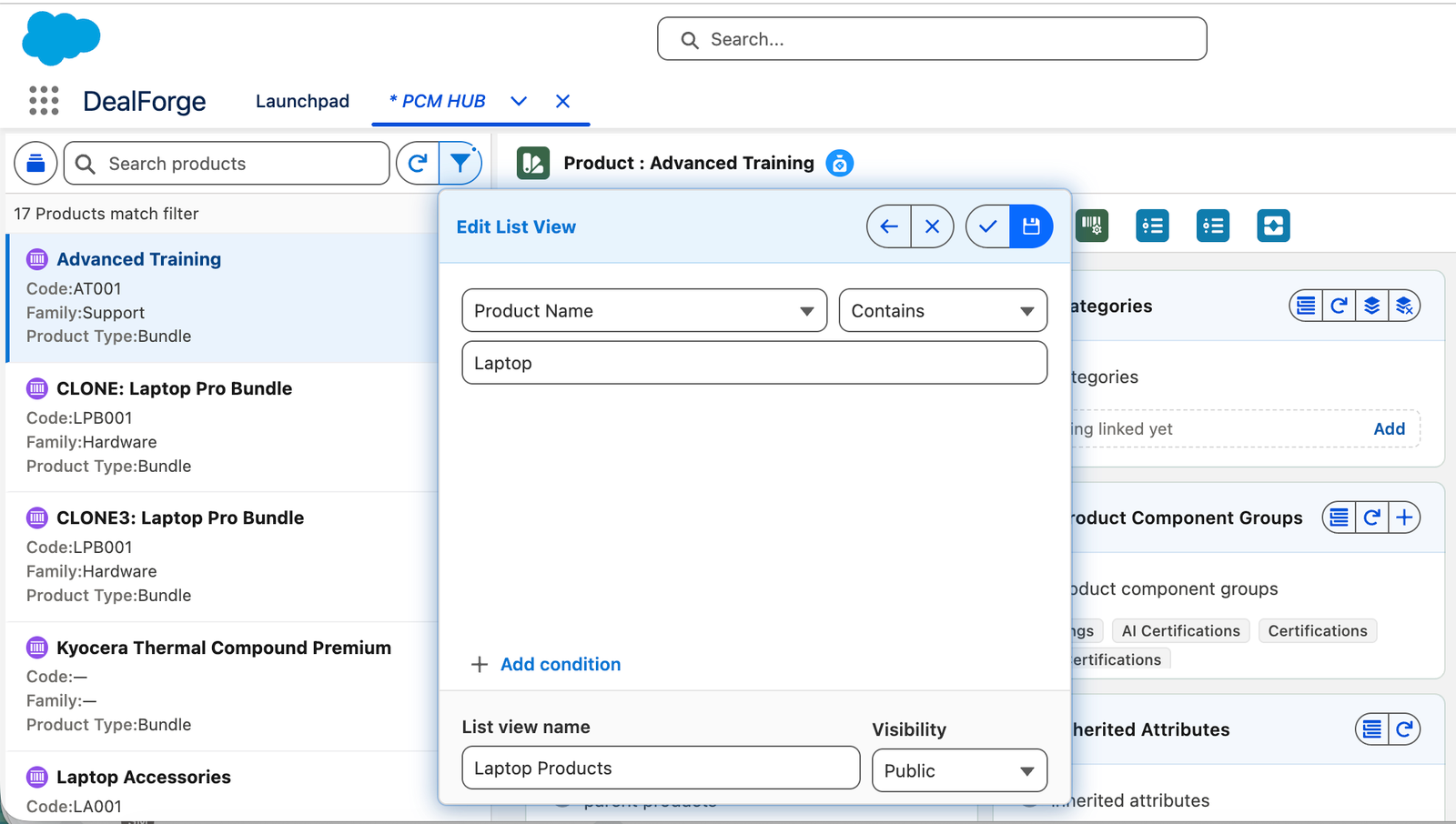
images/list-views/builder.pngThe builder with two conditions, a name and the visibility- Pick a field from the first dropdown.
- Pick an operator from the second. The operators offered depend on the type of the field.
- Type or pick a value. Some operators need no value.
- Click Add condition for each extra condition. A view can have up to eight. Use the at the end of a row to remove a condition.
- Enter a List View Name. It is required to save.
- Choose the Visibility, Public or Private.
- Click Save, which saves the view and applies it. Use Back to return to the list without saving.
A record is shown only when it meets every condition, so adding conditions narrows the list.
Operators
| Type of field | Operators |
|---|---|
| Text | Contains, Does not contain, Starts with, Equals, Not equal to, Is null, Is not null |
| Number | Equals, Not equal to, Less than, Greater than, Less or equal, Greater or equal |
| Date | Equals, Not equal to, Before, After, On or before, On or after |
| Picklist | Equals, Not equal to, Includes, Excludes |
| Multi-select picklist | Includes, Excludes |
| Checkbox | Equals, with the two choices shown by name, such as Active and Inactive |
| Pick from a list (for example price books) | Any of, with a checkbox for each choice |
Is null and Is not null need no value. Some apps offer a shorter list for a field, when only some operators can be applied there.
Public and private views
- A Private view is yours alone.
- A Public view is shared. Everyone who uses the app can apply it.
- Only an app administrator can create or change a Public view. For everyone else the Visibility box is locked to Private. Anyone can still apply the Public views other people have made.
- When an administrator starts a new view, Visibility starts as Public. For everyone else it starts as Private.
Trying a filter without saving it
To filter once without keeping the view, build the conditions as above and click Apply instead of Save. The panel closes and the list is filtered, and the view is listed as a Quick View with its criteria whenever you reopen the panel. Nothing is saved.
A Quick View can be cleared with the Clear button in the panel. To keep one, clear it and build it again with a name and Save.
Using a list view
- Apply it: open the panel and click Apply on the view. The list reloads with only the matching records.
- See what is applied: the filter button shows a dot, and the panel highlights the applied view. A line at the bottom reads No list view applied when none is.
- Switch views: click Clear on the applied view, then apply another.
- Clear it: expand the applied view in the panel and click Clear. The list returns to showing every record.
- Change a view: clear it, click Edit, change it and save.
- Remove a view: clear it, click Delete, then confirm.
If a list is empty after you apply a view, nothing matches its conditions. Clear the view, or edit it to loosen the criteria.
What you can filter on in each app
PCM Hub
The field list comes from the object chosen in the List Source, so Products offers product fields and Categories offers category fields. The field types decide the operators. Saved views belong to the object they were made for: a Products view is listed only while Products is the List Source.
Picking a different List Source starts you with no view applied. See Choosing What You See in the PCM Hub guide.
CD Hub
You can filter context definitions on name, API name, description, base definition, standard, active, reference definition, context TTL, created date and last modified date.
Deal Packages
You can filter packages on:
- Package name
- Version
- Price book, picking one or more from a checkbox list
- Product name, to find packages that contain a product
Name and product take Equals, Starts with and Contains. Version takes Equals.
Troubleshooting
| What you see | What it means |
|---|---|
| No list views saved. Create one to get started. | No one has saved a view for this list yet. Use New. |
| Visibility is locked to Private | Only app administrators can make a view Public. |
| Save is grayed out | The view needs a name. |
| An access message in the panel | Your profile or permission set does not give access to the list views or the records they cover. Ask your administrator. |