
Overview
Every DealForge app has a Send Feedback button in the header bar. It opens a short form that emails Clerisoft directly, so you do not have to leave Salesforce, find the right address or remember which org you are in. The form adds your name, role, profile and org details for you, so Clerisoft can follow up without asking.
You can use it for:
- Feature requests for something the apps do not do yet.
- Bugs when something does not work as you expect.
- Enhancements to something that works but could work better.
- Feedback, questions or anything else.
You do not need to be an administrator. Anyone who can open one of the apps can use the button.
Where to find the button
The button is in the header bar of Deal Packages, PCM Hub, CD Hub and License Manager. It sits at the right end, in the same button group as the app launcher. Hover over it to see what it does.
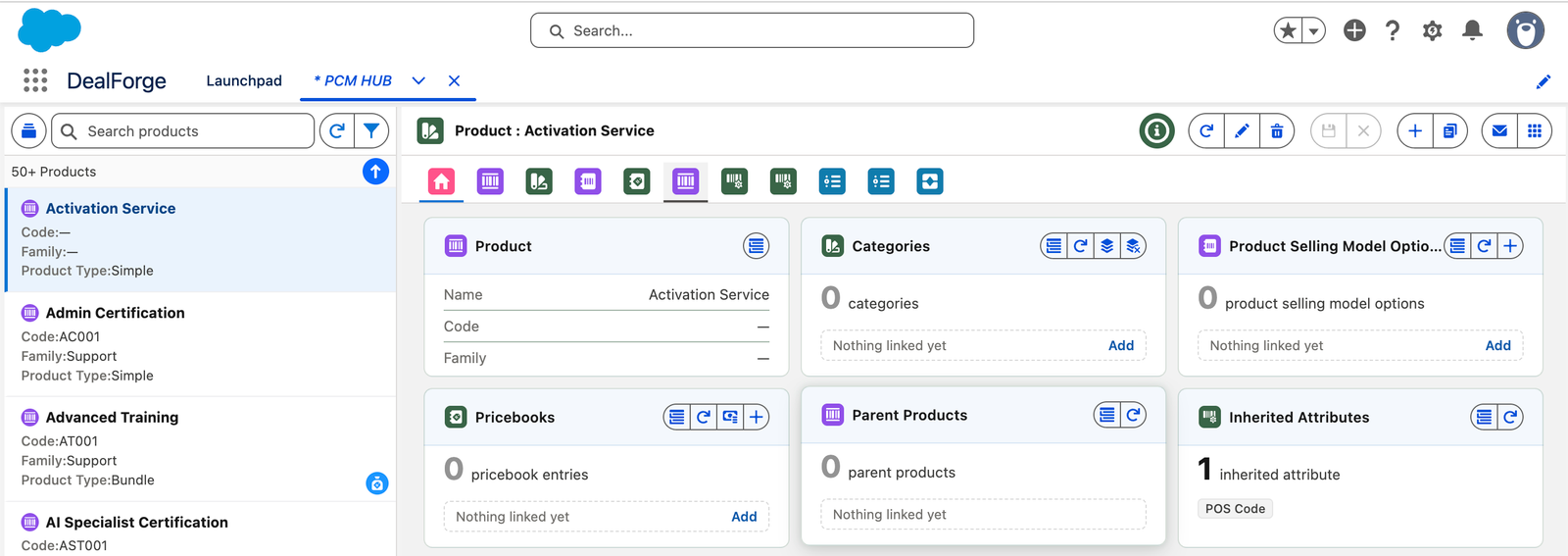
images/feedback/button.pngThe Send Feedback button next to the app launcher in the header bar- Send Feedback. The button at the left of the pair. The app launcher is the one beside it.
Sending feedback
- Click in the header bar. The Send Feedback popup opens.
- Open the App list and tick every app your feedback is about. The app you are in is ticked for you. You can tick more than one, for example when the same problem appears in PCM Hub and CD Hub.
- Open the Feedback type list and tick what kind of feedback this is: Feature Request, Bug, Enhancement, Feedback, Question or Other. You can tick more than one.
- Enter a Subject, a few words saying what it is about.
- Write your Message. Describe what you were doing, what you expected and what happened. For a bug, the record name and the steps you took help the most.
- Check the details at the bottom, then click Send in the top right of the popup.
A message confirms that the feedback was sent.
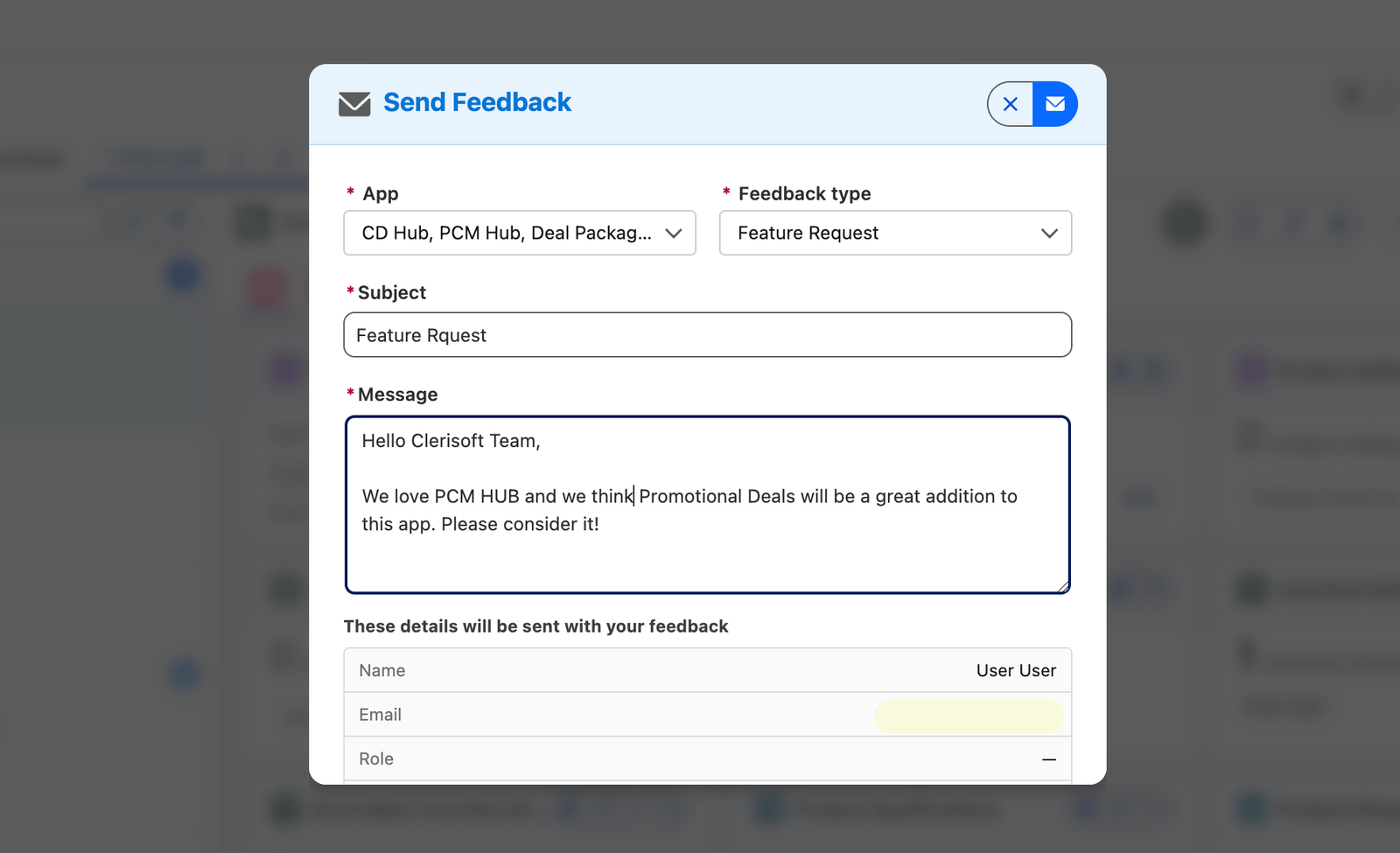
images/feedback/popup.pngThe Send Feedback popup- App. Click the list to open it, then tick one or more apps. The list stays open while you tick, and closes when you click anywhere else.
- Feedback type. Works the same way. At least one app and one type are required.
- Subject and Message. Both are required. The Send button stays grayed out until everything required is filled in.
- Details that will be sent. Read only. These are the details added to your email. See below.
What gets sent
The email goes to Clerisoft, and you are copied, so you have your own record of what you sent. Its subject reads Feedback from your name from your company. The body contains your subject, the apps and types you chose, your message and a block of details:
| Detail | What it is |
|---|---|
| Name and Email | Your Salesforce user. Clerisoft replies to you at this address. |
| Role and Profile | Your role and profile, which tell Clerisoft what you can see and do. |
| Company Name | The name of your Salesforce org. |
| Org Type | Production or sandbox, and the edition. |
| Org Id | Your org's 18-character ID. |
These come from Salesforce itself, not from the form, so they cannot be mistyped. The popup shows them under These details will be sent with your feedback before you send.
Troubleshooting
| What you see | What it means |
|---|---|
| Send is grayed out | Tick at least one app and one feedback type, and fill in both the subject and the message. |
| Unable to send email | Salesforce could not send the message. Check that your org allows outgoing email, then try again. |
| The button is missing | Reload the page. If it is still missing, the app may be on an older version of DealForge. Ask your administrator. |