
Overview
This guide walks you through installing DealForge in your Salesforce org and getting it ready for your team. DealForge installs as a single package that includes all three apps: Deal Packages, PCM Hub and CD Hub. A starter trial license is created automatically when you install, so you can start using the apps right away.
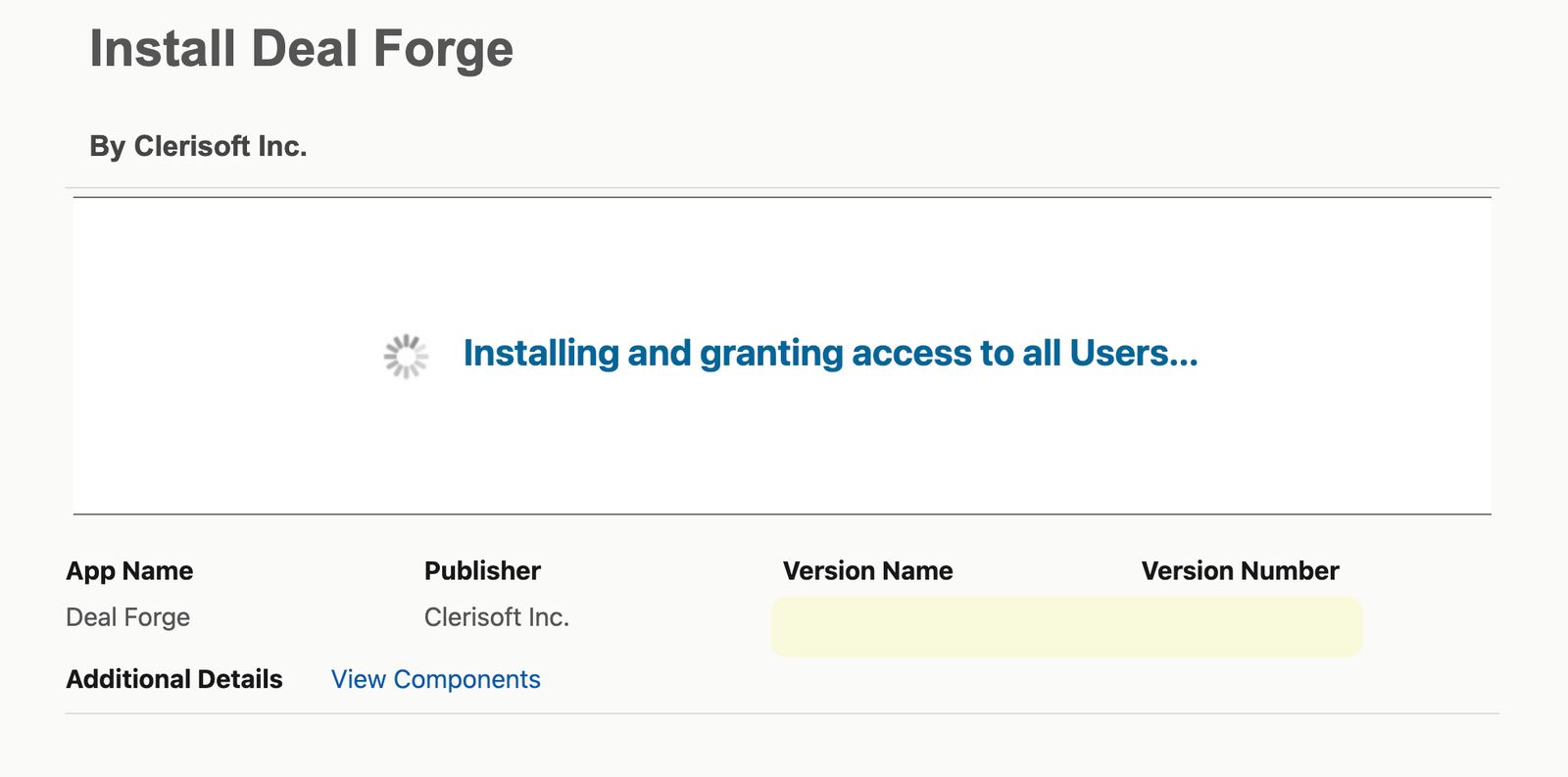
images/install-guide/overview.pngInstall Guide overviewBefore You Start
DealForge builds on Salesforce Revenue Cloud, so your org must have the Revenue Cloud features DealForge uses turned on, such as Product Catalog Management and Context Definitions. If they are not enabled, the install fails. Confirm with your Salesforce administrator or account team before you install.
Installing and setting up DealForge requires a Salesforce administrator. Make sure you can install packages in your org and that you have the Customize Application permission, which the DealForge Setup page requires. If you do not have these permissions, please reach out to your system administrator for assistance.
What You'll Do
- Install the package. Install DealForge from the install link you received.
- Finish setup. Open DealForge Setup and follow its steps once to connect DealForge to your org. These steps are in the Setup and Launchpad guide.
Install the Package
The DealForge app suite is currently in Salesforce Security Review and is undergoing certification for listing on AppExchange. This guide will be updated once the listing is live.
- Open the install link for your org type.
- Production or developer org: Install Link (Beta)
- Sandbox: Install Link (Beta)
- Log in to the org as a Salesforce administrator.
- Select Install for All Users, and click Install.
- When the install finishes, click Done.
Sometimes the install takes longer than usual. If it does, Salesforce shows a message that the install is in progress, and you can continue working in your org. You will receive an email when the installation is complete.
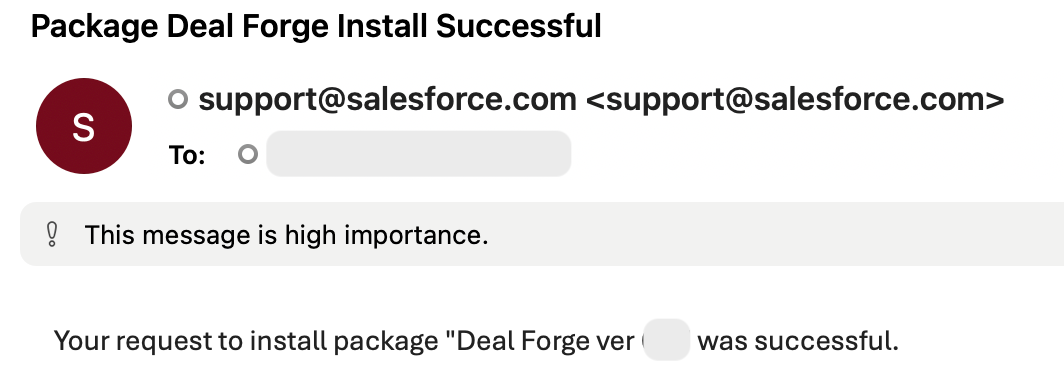
images/install-guide/install-package.pngInstall the packageA trial license is created automatically a few seconds after the install finishes. If an app shows License Invalid right after installing, wait about a minute and refresh the page.
Next Steps
- Open the App Launcher, search for DealForge, and open the app. It opens on the Launchpad, the home page for all DealForge apps.
- If setup is not finished, the Launchpad prompts an administrator to finish it. Follow the steps in the Setup and Launchpad guide.
- Give your team access to the apps by following the License Manager guide.
- If anything does not work as expected, use the Send Feedback button in any DealForge app. See the Sending Feedback guide.
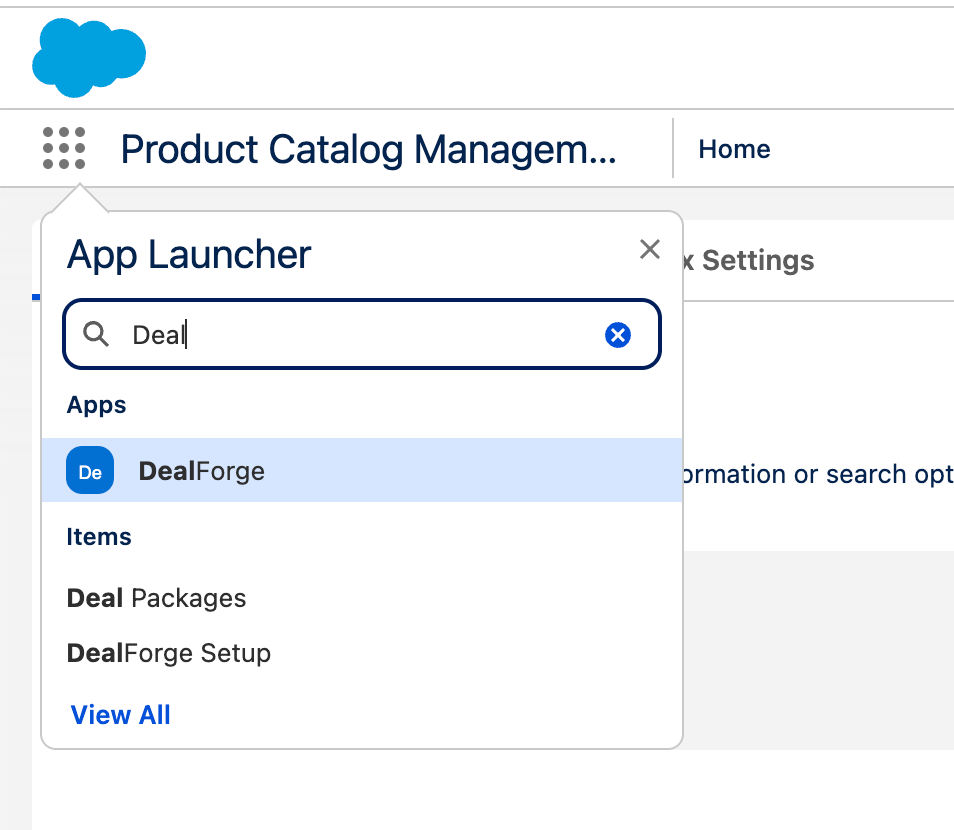
images/install-guide/launch-dealforge.pngOpen the DealForge app from the App Launcher